First movements
Learn the virtual controls and check small physical movements safely.
Before moving
- Identify the active robot: Virtual, a local physical arm or a remote session.
- Secure the base and clear people, cables and objects from the full movement area.
- Locate the on-screen stop and physical power disconnect. Software control does not replace an accessible power disconnect.
Moving the virtual gripper
In mouse teleoperation, drag the highlighted gripper target. The arm follows using inverse kinematics. Hold Shift while dragging to change height. Shift is not a general movement-enable key in this mode.
| Action | Control in this mode |
|---|---|
| Move across the plane | WASD or arrow keys; direction depends on the camera view. |
| Up / down | R / F. |
| Rotate the wrist | Q / E. |
| Gripper | G / H; check the current screen legend. |
| Camera | Right button: orbit; middle button: pan; wheel: zoom. |
Shortcuts depend on the screen. Space operates the gripper in virtual teleoperation, while an active emergency-stop handler uses it for STOP. Check the legend and visible STOP button before the exercise; do not use one shortcut sheet for every mode.
Physical arm
After correct calibration, use Control robot for the first small movement. Do not immediately sweep a joint’s full range. Watch the real arm as well as the scene. Stop if direction is wrong, a joint binds or movement is unexpected.
After STOP
Read the lockout message. If Lab requires a power cycle, clear the area and support the arm before following that sequence and reconnecting. Reloading the page does not necessarily reset servo state.
Controls
| Button or field | Action and result |
|---|---|
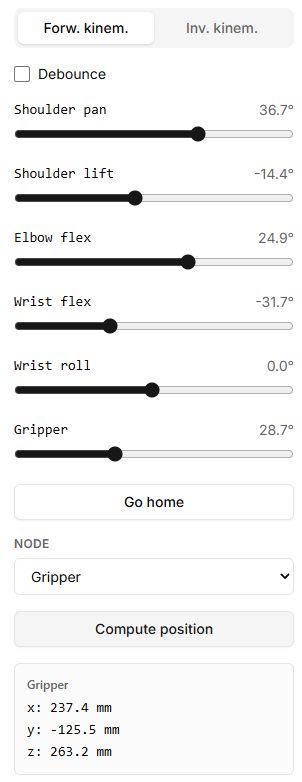
| Tools → Control robot | For your first test, connect using Virtual and open forward kinematics. Move one slider slightly and check which joint moves. |
| Go home | Returns to the model’s neutral pose. With a physical connection, this is a movement command, not a stop command. |
| Open gripper / Close gripper above the virtual scene | Hold the desired button. Releasing it stops changing the opening; this pair of buttons is available in the supported virtual-scene mode. |
| Orange marker | Drag it to set a target for the virtual arm. Holding Shift while dragging changes height; it is not a general enable switch for all movement. |
| Forw. kinem. / Inv. kinem. | Switch between direct joint control and target X, Y, Z. Before entering coordinates, select a link and check units. |
| Stop / STOP on the current screen | Check the specific tool’s instructions for its effect. Stop may end only the program or playback; do not substitute Go home for it. |