Submit and revise homework
Find assigned work, send an answer and respond to teacher feedback.
Find an assignment
Open Homework in the menu. It appears for class members. An empty list may mean the teacher has not published work or assigned it to you. Check your account email and ask about the assignment.
| Type | How to complete |
|---|---|
| Module | Open and complete the assigned module. Its result comes from course progress. |
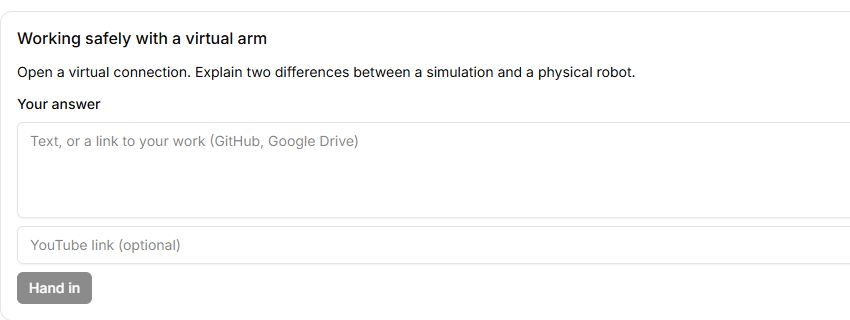
| Answer for the teacher | Read the task, enter your answer and any available recording-link fields, then submit. |
| Status | Action |
|---|---|
| Locked | Complete the stated unlocking condition, such as a previous module. |
| Open | Do the work and submit the answer. |
| Submitted | Wait for review. |
| Returned | Read feedback, revise and resubmit. |
| Accepted | Review is complete. |
Revise an answer
- Open the returned assignment and read Teacher note.
- Edit the answer so the correction is clear; check any attached link.
- Resubmit and verify that the status changed.
- After the next review, check whether the answer was accepted.
Do not assume that saving text is the same as submitting it. Confirm the visible status. Module completion and acceptance of a written answer are separate results.
Controls
| Button or field | Action and result |
|---|---|
| Assignments / Lectures | Switches between assignments and materials for your groups. Check the displayed group name. |
| Assignment status | To do means you can work on it; Locked means an opening condition must be met first; Waiting for review means your answer has been submitted; Needs revision means correct your answer; Accepted means review is complete. |
| Open the module | For a Complete a module assignment, opens the required lesson. This type uses course progress rather than a text-submission form. |
| Your answer | Enter the result of the text assignment. Check that it answers the question rather than merely saying you finished. |
| YouTube link (optional) | Provide a video link if the teacher allows this submission method. This field does not upload a local video file. |
| Hand in | Saves the answer for review. Unavailable when both text and link are empty, or while a request is running. Check the status after submitting. |
| Teacher’s note | Read it before revising returned work. It explains the reason for return or the review outcome. |
| Hand in again | Sends the corrected answer for another review. Check that its status is awaiting review again. |