Account and access
Sign in, check course access and find your profile and saved robots.
Sign in
- Open Lab and select Sign in / Log in.
- Enter your email and request a sign-in link. Open it in the browser on the computer you will use. Request another link if it has expired.
- Use Google or GitHub when those buttons are available; their availability depends on server configuration.
Course access
Access can come from an active class, a user role or a subscription. The course paywall may also be disabled. Having no personal subscription therefore does not necessarily mean you lack access. If a pricing screen appears, first check the account and class membership; ask your teacher about organization access.
Profile
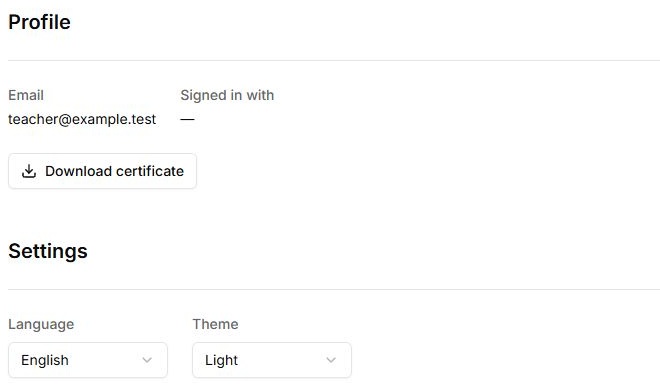
- Profile / Account contains account details and settings.
- Language changes the interface and course text; Theme changes appearance.
- Course and homework notification settings are in the profile. Reminders do not replace checking deadlines in Homework.
- Subscription controls depend on payment configuration and subscription status. Check existing access before making another purchase.
My robots
A saved robot links its name, model and calibration data to your account. Export and import can transfer the configuration. Mechanical changes may invalidate old calibration. See files and saved data.
An invitation did not join your class
Check your email in Profile and ask the teacher to compare it with the student record. Use a normal browser rather than an embedded messenger browser.
Controls
| Button or field | Action and result |
|---|---|
| Email; Signed in with | Show the current account and how you signed in. Compare the email with the address your teacher added to the group. |
| Settings → Language | Select a language from the list. The interface changes after selection; no separate save button is needed. |
| Settings → Theme | Choose Light or Dark. This changes Lab’s appearance, not course data. |
| Course reminders / Homework reminders | Checkboxes control the corresponding emails. Changes are sent immediately; checkboxes are unavailable while settings load. |
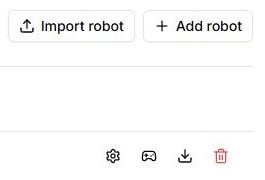
| My robots → add | Creates a saved profile with a name and model. Afterwards, select that profile when connecting so calibration can be saved to it. |
| Pencil beside the robot name | Opens name editing. The checkmark saves and the cross cancels; renaming changes neither the model nor mechanical calibration. |
| Calibration; view camera calibration | Open range setup or the selected profile’s saved camera parameters. A profile’s existence alone does not mean it is calibrated. |
| Import / Export robot | Import reads profile JSON; export downloads the selected robot configuration. After transferring it, check the model, camera data and correspondence to the actual mechanism. |
| Allow remote control | Opens a remote-control session for the selected robot. A suitable connection is required; give the code only to the intended operator. The person beside the arm is responsible for keeping the workspace clear. |
| Delete robot | Opens confirmation to delete the saved profile. Export any configuration you need first; this is not a command to disconnect the physical arm. |
| Download certificate | Appears when course requirements are met and downloads a PDF. If absent, check required module completion and that you are signed into the same account. |
| Manage subscription | Opens the billing portal when a subscription is available. Group access and a personal subscription appear differently; check your status before buying again. |
| Sign out | Signs out of the current account. Sign in again with the same email to continue with your saved progress. |