ROS2 lab
Run browser-based Python/C++ examples with joint states and commands.
First run
- Connect a virtual robot and open ROS2 lab.
- Select wave_node.py in Files and inspect its code and selected libraries.
- Select Run. On the first run, wait for the Python runtime and packages to download.
- Read the console and open 3D view to observe the model.
- Use Stop; if normal stopping fails, use Force stop.
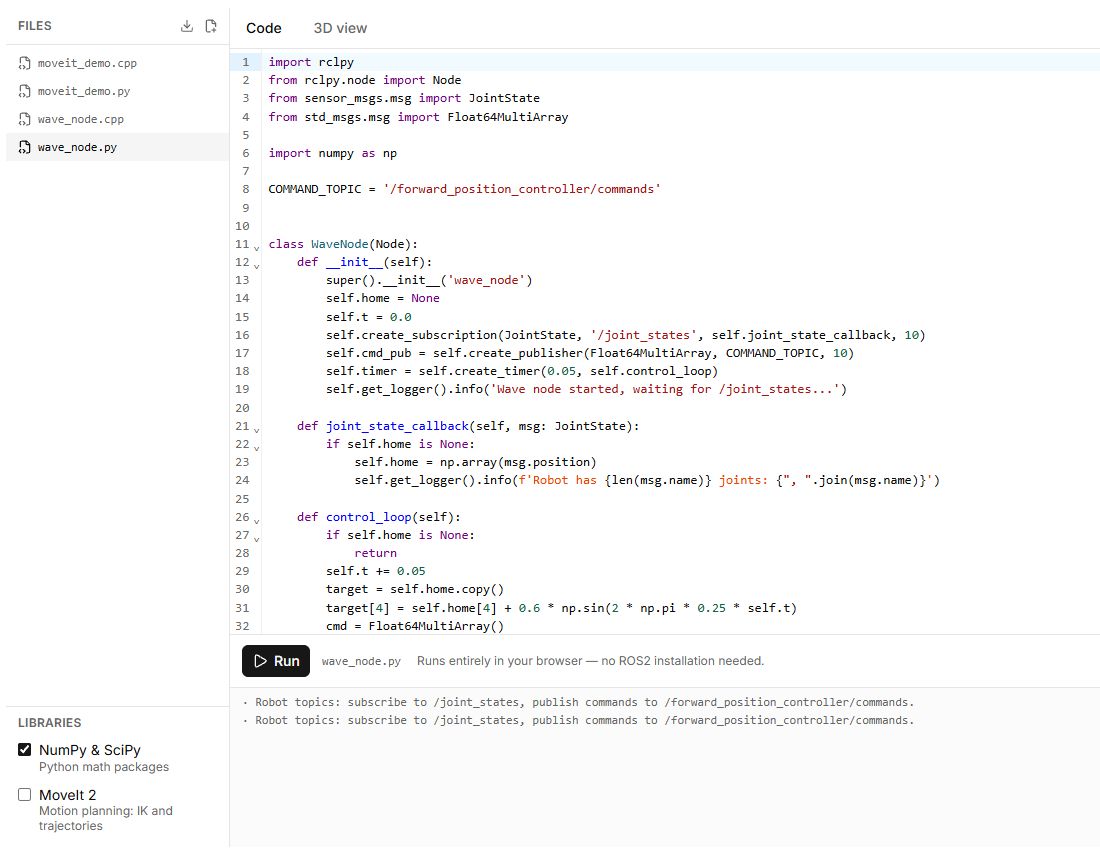
Files and messages
New file creates a .py or .cpp file. Download all files (ZIP) saves working files. /joint_states carries joint states; commands are published to /forward_position_controller/commands. Revolute-joint code uses radians even when the interface displays degrees.
Compatibility
This browser teaching environment provides supported APIs and simulated topics. It does not install a full ROS2 distribution or guarantee that arbitrary ROS2 packages, drivers or system commands will run. Python uses a browser runtime; C++ uses supported parsing and execution. Begin with built-in examples.
Errors
Check the robot connection, selected file, dependencies and console message. Runtime-download errors differ from program errors. A physical connection can receive real commands, so test your program virtually first.
Buttons, fields and results
| Control | How to use it and what happens |
|---|---|
| Files | Selects the open program file. Start with the included wave_node.py and inspect the code before running it. |
| New file | Creates a .py or .cpp file. A path such as drivers/motor.py is allowed. Duplicate names or other extensions produce an error. |
| Delete file | Requires confirmation. The last file cannot be deleted. Before deleting, save any project you need using Download all files (ZIP). |
| Download all files (ZIP) | Downloads the working source files as one archive. It does not install a ROS2 environment on your computer. |
| Libraries | Selects packages available to the program. Enable required dependencies before running; their first load may take time. |
| Run | Runs the program with a connected virtual or physical robot. The first run prepares the runtime and packages; wait for Runtime ready or read any loading error. |
| Stop | Requests a normal shutdown of the running program. |
| Force stop | Use to terminate execution when normal stopping has not ended the program. This stops the runtime; it does not guarantee that hardware power is disconnected. |
| Console | Shows node output, runtime status and program errors. Fix the reported error before running again. |
| 3D view | Opens the scene to observe model positions. Viewing the scene does not itself change a physical connection to a virtual one. |
For a first test, select Virtual, open wave_node.py, click Run, wait for node messages and movement in 3D view, then click Stop. Change commands in small steps; angles in joint_states messages and controller commands use radians.