Teleoperate
Use a leader arm to drive a follower arm.
Preparation
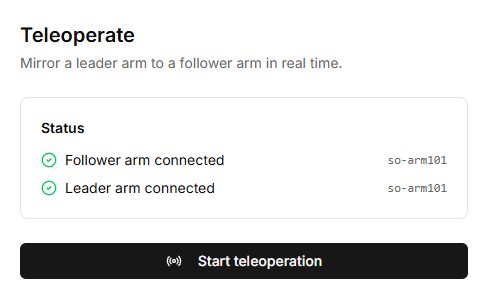
Two separate connection roles are required: Follower and Leader. Check both models, IDs, calibration and workspaces. Resolve missing-configuration and model-mismatch warnings before physical operation.
Procedure
- Open Teleoperate and connect Follower arm, which will repeat the movement.
- Connect Leader arm, the movement source. Check both models in Status.
- Add a camera for observation if needed.
- Select Start teleoperation and confirm the workspace is ready.
- Move the leader slowly, beginning with a small change, while watching the follower.
- Use Stop before changing connections or finishing.
Unexpected movement
Stop. Check arm roles, matching models, IDs, directions and ranges. Mouse control in a lesson’s virtual scene and two-arm mirroring in Teleoperate are different workflows.
Buttons, fields and results
| Control | How to use it and what happens |
|---|---|
| Connect follower arm | Connect the follower first: this arm receives movement commands. Check its model in the connection dialog. |
| Connect leader arm | Then connect the leader, which supplies joint positions. This is a separate connection; both Status labels should confirm that the arms are connected. |
| Status and model names | Check roles and models before starting. A different-model warning means that joints may be mapped incorrectly. Configure any missing model configuration before operating physical arms. |
| Camera (optional) | Select an already connected camera for observation. Clicking the selected camera again clears the selection. Local and Remote describe the camera source, not how the arms communicate. |
| Start teleoperation | After you confirm that the workspace is clear, starts reading the leader’s positions and sending them to the follower. Begin with a small movement and check joint correspondence. |
| Hide camera / Show camera | Hides or shows the selected camera image. Movement mirroring continues. |
| Stop | Stops mirroring and returns to preparation. Connections remain open; this button does not turn off power or disable motor torque. |
Mirroring stops if either connection is lost. Before restarting, restore both connections and check roles, models and workspace again.