Policies
Record demonstrations, export episodes and run a compatible policy.
Record a demonstration
- Connect the robot and camera, then open Policies → Record.
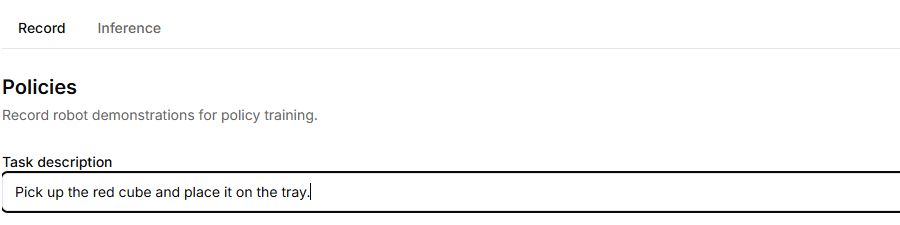
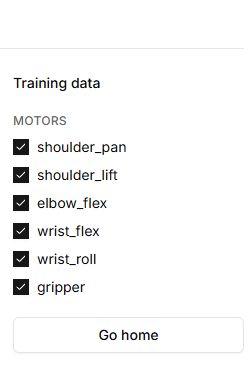
- Enter a short Task description. Select the camera and required motors in Training data.
- Select Start recording, demonstrate the task and finish with Stop recording.
- Mark whether the episode succeeded and inspect Episodes.
- Export in the format your training workflow requires: Robonine v1.0 or LeRobot v3.0. Save files before closing the working session.
Run a policy
- Switch to Inference.
- Connect the camera and use Upload policy for a compatible package containing the expected schema.json and weights.safetensors.
- Check that model, camera and joints match training conditions.
- Use Start inference only in a prepared workspace. Watch the console and finish with Stop inference.
Limits
Recorded demonstrations are not yet a trained policy. A file loading successfully does not establish movement quality or safety. Module 9’s simulated training is a separate teaching feature and does not train a compatible policy.
Buttons, fields and results
| Control | How to use it and what happens |
|---|---|
| Connect robot | Opens the connection dialog. Once connected, Record and Inference become available. |
| Record; Task description | Open recording and enter the episode task. An empty description or no selected camera prevents Start recording. |
| Training data: Motors / Sensors | Use checkboxes to choose the data included in the demonstration. Check the joint and sensor selection before recording; it determines the training data. |
| Go home | Moves the robot to its neutral pose. This moves the arm; it does not clear a recording. |
| Start recording | Starts recording a demonstration. Watch elapsed time, frames and the camera image while performing the task with the robot. |
| Stop recording | Ends the episode and asks whether it succeeded. Wait for saving to finish. |
| Yes, it worked / No, it failed | Labels the outcome of this demonstration. Afterwards, check the episode in Episodes, including its model and frame count. |
| Download; Robonine v1.0 / LeRobot v3.0 | Open an episode’s download menu and select a format. Save the file before ending the session; a Success label does not mean that a model has already been trained. |
| Download all episodes | Appears when there is more than one episode and exports them in the selected format. |
| Delete beside an episode | Deletes that episode. Download any recording you need first; the current interface deletes immediately when you click this button. |
| Motor disconnected; Dismiss | Recording stopped because the indicated joints stopped responding. Dismiss closes the message and returns to preparation; resolve the connection problem first. |
| Inference; Upload policy | Upload a .policy file containing schema.json and weights.safetensors. Its filename appears in the panel. A schema or weights error means loading did not finish. |
| Motors / Sensors in Inference | Shows the contents of the loaded policy. These checkboxes are disabled: they describe its schema rather than letting you change the trained model’s inputs. |
| Start inference | Runs the loaded policy when its required data and camera are available. Watch movement and the console; check robot-model and policy compatibility beforehand. |
| Stop inference | Stops running the policy. Loading a different policy is unavailable while inference is running. |
| console | Shows timestamped runtime messages and errors. An empty waiting console does not prove that execution started successfully. |