MCP Bridge
Connect a compatible AI client to Lab functions.
Enable and check
- Open MCP Bridge in the catalog and read its description.
- Install the service in your account.
- Use a supported browser WebMCP client, or How to configure my AI for a local MCP relay.
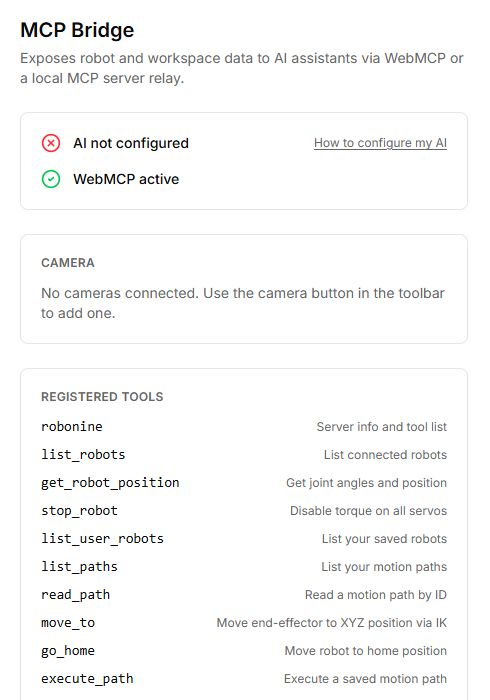
- Check WebMCP active or local AI connectivity and the Registered tools list.
- Begin by reading robot information or a virtual arm’s current pose. Try movement commands separately after checking the connection.
Capabilities
The service provides robot and path information, pose readings and movement commands, including home and path execution. Some operations use cameras and scene recognition. Check the actual registered tool list in your version.
Before movement commands
Coordinate commands use metres, not millimetres. Check the model, coordinate frame and target robot. Disabling torque releases holding force and an unsupported arm may drop. Do not interpret it as a guaranteed safe stop in every mechanical pose.
Buttons, fields and results
| Control | How to use it and what happens |
|---|---|
| WebMCP active / inactive | Shows browser command-interface availability. This is separate from the local AI connection; active alone does not mean that an external assistant is connected. |
| Local AI configured / AI not configured | Shows the local MCP bridge state. If disconnected, follow How to configure my AI. |
| How to configure my AI | Opens setup instructions. Follow them in your AI client, then return and check the connection status. |
| Registered tools | Lists commands available to the assistant. This is a reference list, not manual execution buttons. Start testing by reading the robot list and current pose. |
| Camera | Select a connected camera for frame capture. Keep the MCP Bridge screen open for scene recognition; image capture requires a camera. |
| list_robots / get_robot_position | Read connections and pose. Rotational joint angles are returned in radians; coordinates and prismatic displacements use metres. |
| list_user_robots / list_paths / read_path | Read the current user’s saved profiles and paths. read_path requires a path ID. |
| move_to / move / go_home / execute_path | Movement commands: XYZ uses metres; go_home returns to the neutral pose; execute_path plays the path with the given ID. Test these with Virtual first. |
| pregrip / grip / lift / release | Approach an object, close the gripper, lift and release. These actions may move a physical arm. The presence of a command does not confirm that a contact sensor exists. |
| extract_scene | Sends a frame to the object-recognition service. Requires sign-in and an available camera; results contain labels and bounding boxes in image coordinates, not ready-to-use grasp coordinates. |
| stop_robot | Disables torque on every motor of the selected arm. The arm may drop under its own weight; support it. This is not equivalent to the path-playback stop button. |
In commands, role=”default” means the follower and role=”leader” means the leader. Check the connection and coordinate units before a movement command. Control is available through the assistant; the command list on the page does not replace checking its request.