Block code
Build a visual program and test it in simulation.
First project
- Open Block code and choose Simulation.
- Drag blocks from categories into the workspace and connect them. Start with one small movement followed by a wait.
- Select the joint or target coordinates and check field units. The pictured example moves Shoulder pan by 10 degrees and waits 500 ms.
- Select Run and observe the Simulation view. Stop before editing the program.
- Use Save… to preserve the project and Load… to reopen it.
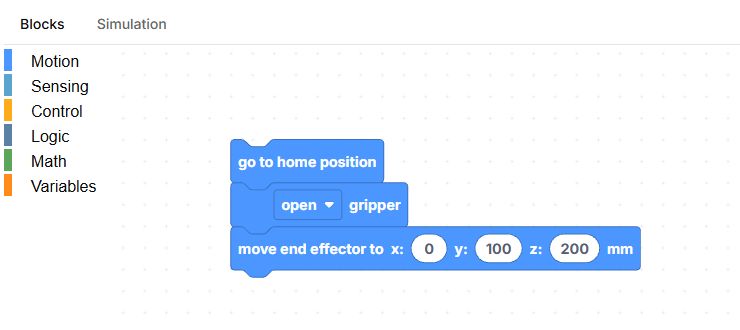
Available building blocks
Joint commands, inverse kinematics, sensor readings, conditions and loops can be combined. Sensors require a corresponding data source. If IK finds no solution, the target was not reached: adjust it and test again safely.
Physical robot
Connect hardware and choose Real robot only after checking model and calibration. No physical robot connected means a virtual connection does not satisfy this mode. An endless movement loop is not a suitable first test.
Buttons, fields and results
| Control | How to use it and what happens |
|---|---|
| Blocks | Opens the program workspace. Select a category on the left, drag a block into the workspace and connect it to the previous block. |
| Motion | Movement blocks use degrees for joint angles and millimetres for end-link coordinates. Commands also open or close the gripper and return home. |
| Sensing | Blocks read a joint angle, an end-link coordinate or estimated gripper pressure. The gripper pressure value from 0 to 10 is an estimate, not a reading in newtons. |
| Control / Logic / Math / Variables | Use waits in milliseconds, loops and conditions; insert logic and maths blocks into compatible fields. Create variables in Variables. |
| Simulation — mode selector beside Run | In this mode, commands move only the virtual model. It works without a physical connection. |
| Real robot — mode selector | Sends commands to physical hardware. A virtual connection is not accepted for this mode. The mode selector is disabled during execution. |
| Run | Converts connected blocks into a program and runs it; the interface switches to the 3D scene. If there are no blocks or the physical connection is unavailable, a message explains why. |
| Simulation — top tab | Shows the 3D scene. This tab only changes the view; the separate mode selector beside Run determines whether execution is real or virtual. |
| Stop | Stops execution. If you see only the scene, return to Blocks to access the stop button. |
| Save… | Downloads the block structure as program.json. Save it before loading another program. |
| Load… | Opens a program JSON file in the workspace. An invalid format produces an import error; plain Python text or trajectory JSON is not suitable. |
| Output; Clear | Program messages and errors appear below the workspace. Clear removes messages while retaining the blocks. |
| Workspace zoom and trash | Zoom buttons change the displayed size of blocks. Drag an unwanted block to the trash to remove it; this edits the program rather than commanding the robot. |