Calibrate robot
Record the available movement range of each joint.
Preparation
Check IDs and initial offsets. Saving requires sign-in and a selected robot profile. Clear the workspace and stay within the safe mechanical limits of your assembly.
Record ranges
- Open Calibrate robot after connecting.
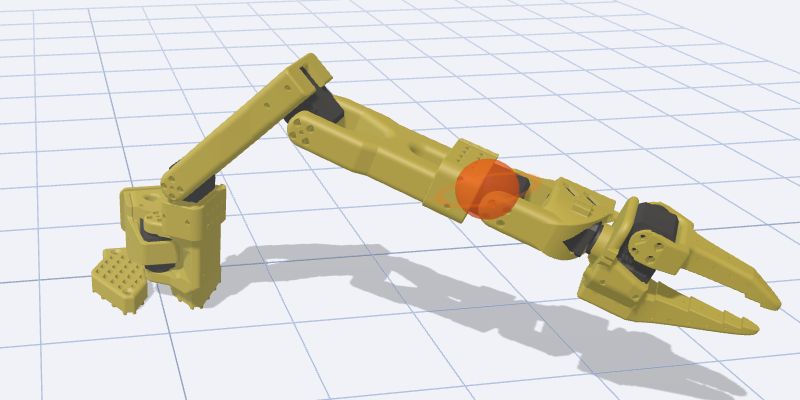
- Gently move each joint through its available range, one at a time. Never force resistance or mechanical stops.
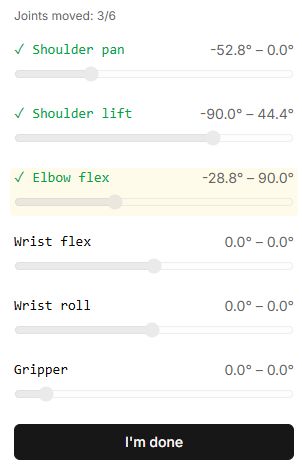
- Watch minimum/maximum values and Joints moved. A zero range means that joint’s movement has not been recorded.
- When all required ranges are recorded, select I’m done.
- Verify the save confirmation. If it fails, check sign-in and the selected profile; a button press alone does not confirm saving.
After calibration
Check a small movement of every joint. Ranges must match your mechanism and direction of movement. TCP and base calibration solve different problems and do not replace motor ranges.
Buttons, fields and results
| Control | How to use it and what happens |
|---|---|
| Connect robot | Opens the connection dialog. When range recording begins, the tool disables motor torque: support the arm beforehand so it cannot fall. |
| Joint indicators and min–max | Show the position read and the limits collected so far. These indicators cannot be dragged. Slowly move the physical joints by hand within their permitted limits. |
| Joints moved | Counts joints for which a noticeable change was recorded. A green check does not prove that the complete safe range was covered. Yellow highlighting indicates a recently moved joint. |
| I'm done | Stops collecting readings and saves ranges to the selected profile. The button does not require the counter to reach 6/6. If the measured span is too small, the program may use configured limits instead of measured limits; check every joint before finishing. |
| Saving… | Indicates that saving is in progress; clicking again is temporarily unavailable. |
| Calibration saved successfully / save error | Check the final message. If saving fails, sign in, select a robot profile and repeat the procedure. Finishing data collection does not itself mean the profile was saved successfully. |
| Done | Returns to the catalog. Reopen the tool to record new ranges. |