Record paths
Record poses, edit their values and preview a sequence.
Preparation
Sign in. Select the model and connect a virtual or physical robot to read poses. Start in simulation.
Record two poses
- Open Tools → Record paths → New path.
- Enter a name, description and model. Check Public: a public path is accessible by link. Clear it for private work.
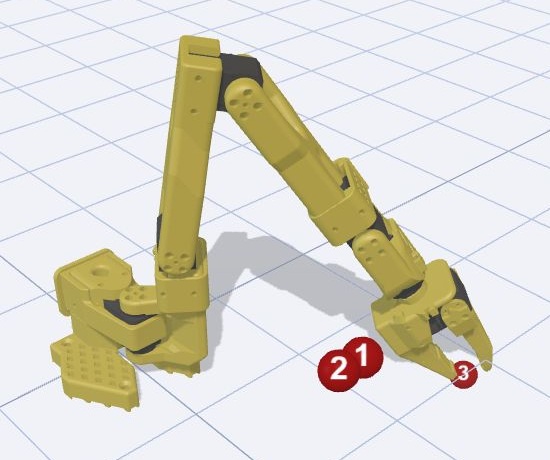
- Select Create, then Add point to capture current motor positions.
- Change the pose using the appropriate controls and add another point. Select a table cell to edit it and press Enter to confirm.
- Choose Raw for encoder counts or Angles for angles. Never enter degrees in Raw mode.
- Select Play in sim and check point order. Stop ends playback; Loop repeats it.
Save and share
The path list provides import and saved-path operations. Share copies a link whose accessibility depends on whether the path is public. Create movie records a video of the visualization. Add camera adds an available camera view.
Before physical playback
Check matching models, calibration, every point and the clear workspace. Successful simulation does not check obstacles on your real table. Start without Loop and stop if movement is unexpected.
Buttons, fields and results
| Control | How to use it and what happens |
|---|---|
| New path | Opens path creation. Enter a name, description and model, set Public, then click Create. An empty name prevents creation. Cancel closes the dialog without creating a path. |
| Public | Controls whether other users can access the path. This checkbox is initially selected in the creation form: clear it before clicking Create for a private example. |
| Import | Select a path JSON file. Import creates new records rather than changing an existing path. Afterwards, check the model, visibility and point count; an invalid file may not produce a separate error message. |
| Edit / path name | Opens the point table and 3D preview. Only the path owner can add, change and delete points. |
| Duplicate | Creates a separate copy with the same points, model and Public setting. The original path remains. |
| Export | Downloads JSON containing the name, description, model, visibility and points. This is a trajectory file, not a video. |
| Share | Copies the path page address. On the viewer page, enabling Loop adds a repeat parameter to the link. Copying a link does not itself make a private path public. |
| Delete / trash icon in the path list | Opens confirmation to delete the entire path. Check its name and use Export first if needed. Cancel closes the confirmation. |
| Add point | With a connection, reads current motor positions. Without a connection, copies the last point; for an empty path, adds the selected model’s neutral pose. Adding a point without a robot therefore does not automatically create a different pose. |
| Raw / Angles | Changes how values are displayed: Raw shows encoder counts; Angles shows degrees, or millimetres for a prismatic joint. Check the selected mode before entering a number. |
| Table cell | Click a value, enter a new number, then press Enter or move focus outside the field. Changes save automatically; there is no separate Save button. Values are constrained to the selected model’s motor limits. |
| Point row / red number in the scene | Select a point to preview its model pose. Use this to inspect the path before playback. |
| Trash icon beside a point | Opens confirmation to delete only that point. Check the selected row before confirming. |
| Play in simulation | Plays the sequence in the 3D scene. It is unavailable for an empty path. Start testing with this mode. |
| Play on robot | Starts the path on the connected robot after a warning. It is unavailable without a connection or points. Check the model and physical workspace before starting. |
| Loop | Repeats the path continuously. Use Stop before changing the mode or points. |
| Stop | Ends current playback. It does not delete the path or turn off robot power. |
| Add camera / camera selector | Adds an observation camera. When several cameras are available, select one from the list. Drag the divider to adjust the space shared by the scene and camera. |
| Create movie | Records one playback of the virtual scene and downloads WebM. It does not record poses from the physical robot. It is unavailable for an empty path or while another playback is running. |
| Stop video | Ends recording early and downloads the video captured so far. |
Example without hardware
- Create a private path using the SO-ARM101 model.
- Click Add point twice: without a connection, both points initially match.
- Select Angles, change one joint angle in the second row by a small amount, and press Enter.
- Click Play in simulation and check that the model passes through both poses.
- Enable Loop to repeat, then finish with Stop. Use Export to save the example as JSON.