Connections
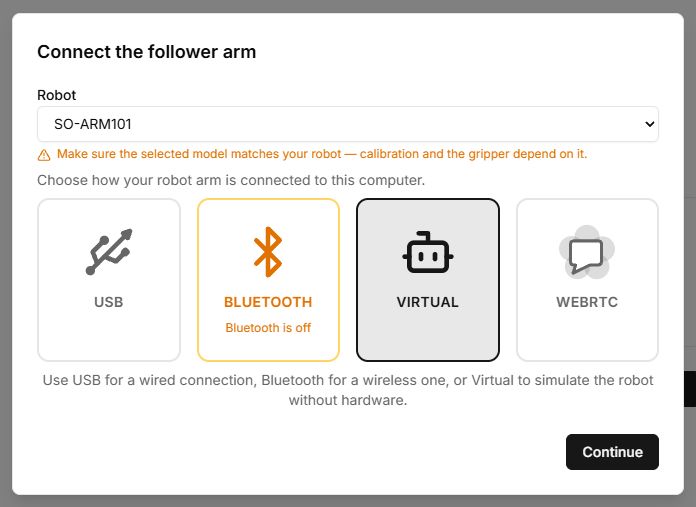
Choose the connection type and robot role before starting a tool.
| Type | Purpose | Requirements |
|---|---|---|
| Virtual | Work without hardware. | A model and browser resources for 3D. |
| USB | Wired connection to a supported board. | Data cable, Web Serial, port permission and separate motor power as specified by the kit. |
| Bluetooth | Wireless connection to compatible BLE hardware. | Web Bluetooth, enabled adapter, compatible firmware and device permission. |
| WebRTC | Connect to a shared remote session. | An active session code/link and network connectivity. |
After connecting
- Check motor count, IDs and statuses.
- Check Follower and Leader roles when the tool uses both arms.
- Verify profile and calibration.
- Make a small, expected movement and stop if anything differs.
Phone and remote access
The connection wizard includes a phone-control option and displays a QR code after connection. Share it only with someone trusted to control the robot. Robot WebRTC sessions differ from Presentation codes: a presentation shows a model, while a remote session may control hardware.
Controls
| Button or field | Action and result |
|---|---|
| Model or saved-profile selection | Determines geometry and motor-value conversion. Check the name before connecting. |
| Virtual → Continue | Connects a software model without a USB port. After polling, check for VIRTUAL in the device table. |
| USB / Bluetooth → Continue | Opens browser device selection, then polls motors. Port permission and a successful motor response are separate stages. |
| WebRTC → code → Continue | Connects to the remote session opened by its owner. The button requires the correct code length; obtain a new code if the session has expired. |
| Back / Retry | Back returns to connection-method selection; Retry reconnects and polls again after you fix the problem. |
| Control from phone | Adds phone control after connecting. The QR code is for the operator, not an invitation link to a class. |
Complete steps and status table: Connecting a robot.