Create assignments
Publish written-answer or module assignments for the whole class or selected students.
Create and publish
- Open a class → Homework → New assignment.
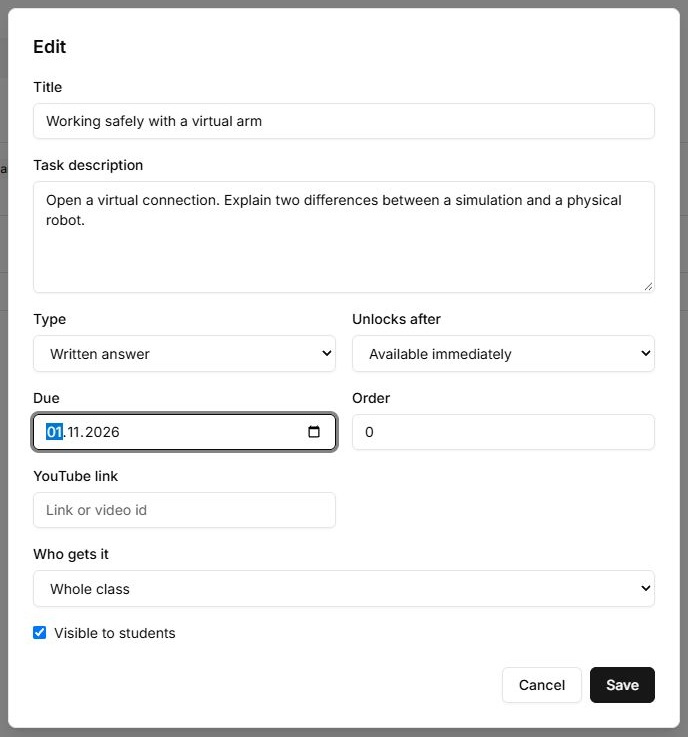
- Enter a title and description explaining the task and the expected evidence.
- Choose a text-answer or module-completion assignment. For the latter, select the target module.
- If needed, set the prerequisite, deadline, order and YouTube link.
- Choose the whole class or individual students as recipients.
- Enable Visible to students and save. Verify that a recipient can see it.
| Type | Student action | Review |
|---|---|---|
| Text answer | Submit text and/or a YouTube link. | Accept or return it in Review. |
| Complete a module | Open and finish the selected module. | Check module and assignment status; this is not a written submission. |
Edit and copy
Select Edit beside an assignment. When you have another active class, you can copy the assignment there. Check recipients and publication in the destination class; do not expect student answers to transfer.
A student cannot see the assignment
Check membership, selected recipients and publication. Work locked by a prerequisite and missing work are different cases. The student hint identifies the required module.
Controls
| Button or field | Action and result |
|---|---|
| New assignment / Edit | Opens a new or existing assignment form in the selected class. |
| Title; Task description | Title is required. Describe the expected result and review criteria; an empty title prevents Save. |
| Written answer / Complete a module | Selects the completion method. A text answer accepts text or a YouTube link. For a module task, select the target course module. |
| Unlocks after | Sets a prerequisite completed module. Immediate opening requires no other module. This is separate from the assignment’s target module. |
| Due; Order | Due date sets the deadline; Order sets the assignment’s position in the list. Changing order does not change the opening condition. |
| YouTube link | Adds video to the assignment instructions. Enter a supported link, not a path to a file on your computer. |
| Who gets it | Choose the whole class or individual students. For individuals, select the required names and check the list before saving. |
| Visible to students | Publishes the assignment when saved. Unchecked leaves a draft; selecting recipients alone does not publish it. |
| Save / Cancel | Save sends changes and closes on success. Cancel closes without saving the current input. |
| Copy to… | Creates the assignment in another available active class. Check recipients, opening conditions and publication there; student answers are not part of the copy. |
| Delete | Deletes the selected assignment. For temporary hiding, use the publication checkbox in Edit instead. |