Interface sections
Locate the course, profile, tools and class workflows.
| Section | Purpose | Check |
|---|---|---|
| Dashboard | Module cards and progress. | Module group, state and access. |
| Homework | Class assignments and lectures. | Class, unlocking condition and teacher feedback. |
| Tools | Plugin catalog and search. | Name, dependencies and connection mode. |
| Profile | Email, language, theme, robots and notifications. | Correct account and selected model. |
| Teaching | Classes, progress, assignments, reviews and lectures. | Teacher role and selected class. |
| Presentation | Shared 3D scene and URDF. | Session and participant permissions. |
| Feedback | Report a problem or suggestion. | Exact error and no other people’s data in attachments. |
Menus depend on the account
Guests see sign-in. Class members have Homework; teachers have Teaching and Presentation. Administrative sections are for administrators and are not needed for ordinary study. The connection control at the bottom of the menu reports robot status, not sign-in status.
Language and appearance
Open Profile → Settings and select Language or Theme. Lab interface languages and documentation languages may differ. If a screenshot uses another language, follow the corresponding control name in the instructions.
Controls
| Button or field | Action and result |
|---|---|
| Toggle Sidebar / collapse-menu button | Hides or reveals section labels. Icons still navigate to the same screens. |
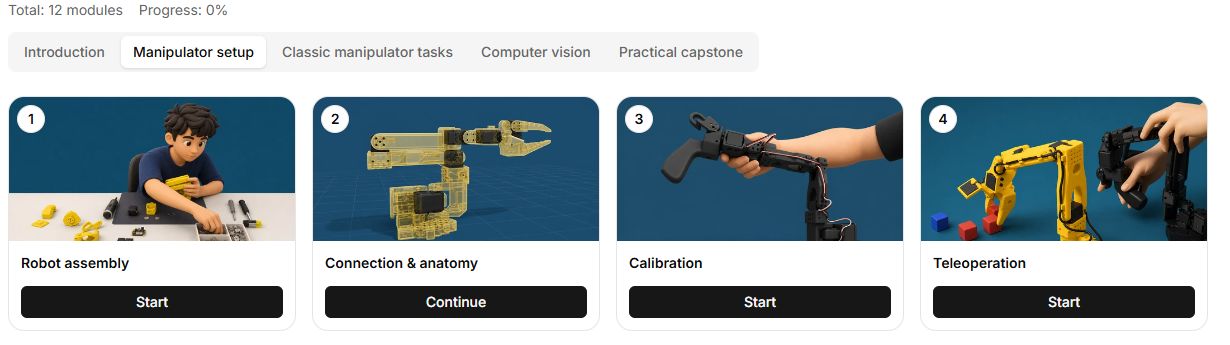
| Dashboard | Opens module cards and progress. Select a module group, then an available card. |
| Homework | Opens assignments and the lectures tab for your groups. Availability depends on the account’s group membership. |
| Tools | Opens the searchable catalog. A tool card opens its workspace; a service card offers installation. |
| Profile | Opens email, settings, saved robots and notifications. Change language and theme by selecting a list value. |
| Teaching | Opens the teacher’s classes. Select a class first, then Students, Homework, Review or Lectures. |
| Presentation | Opens a shared model demonstration. Its code and link are for scene viewing, not hardware connection. |
| Not connected / Connected | Opens robot connection management. This indicator does not show account sign-in status. |
| Feedback | Opens a problem-report form. Include the screen, action sequence, expected result and actual result. |