Plugins and dependencies
Distinguish a tool, a background service and a locally loaded package.
Catalog
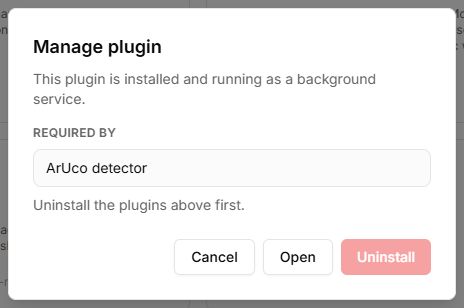
In Tools, search by name or identifier. A tool card opens a screen. A service card offers installation; Installed means the service was added to your account. A tool may request dependencies automatically when opened.
Local package
- Obtain a trusted .robo9 package compatible with the Lab SDK.
- Select Load locally… and choose the file.
- Check its name and open the local card.
- Keep the original file separately. Local loading uses browser storage and does not publish to the shared catalog.
Publish a plugin
Submit for review is a separate review submission. It is unnecessary for private local use and does not guarantee immediate publication. Follow the form and SDK package requirements. Do not include keys, passwords or personal data in source files.
A tool fails to load
Check internet access, dependencies and package compatibility. Record the error and plugin identifier. An empty camera, disconnected robot and JavaScript loading error are different causes; identify the failed stage first.
Controls
| Button or field | Action and result |
|---|---|
| Catalog search | Enter a tool name or identifier. Clear the field to return to the full catalog. |
| Tool card | Opens the workspace. If dependencies are needed, their installation list appears first. |
| Service card; Installed | Adds a service for use by other tools. Installed confirms addition, not library readiness in the current tab. |
| Install requirements → Install | Installs the listed dependencies. Then wait for readiness on the tool screen. |
| Load locally… | Opens a .robo9 file and adds a local card. The package is stored in this browser; keep the original file separately. |
| Delete local card | Removes the package from local browser storage. It does not remove a published plugin from the shared catalog. |
| Submit for review | Opens a separate plugin-submission form, asking you to sign in if necessary. Not required for local use. |
| Previous / Next page | Switch catalog pages when many cards match. The corresponding button is unavailable on the first or last page. |