Lectures and recordings
Publish class material with meeting links or recorded video.
Add material
- Open a class → Lectures → New lecture.
- Enter the title, material and, if needed, date and time.
- Add an external meeting link and/or YouTube recording.
- Enable Visible to students and save.
- Verify the lecture in the student’s Homework → Lectures.
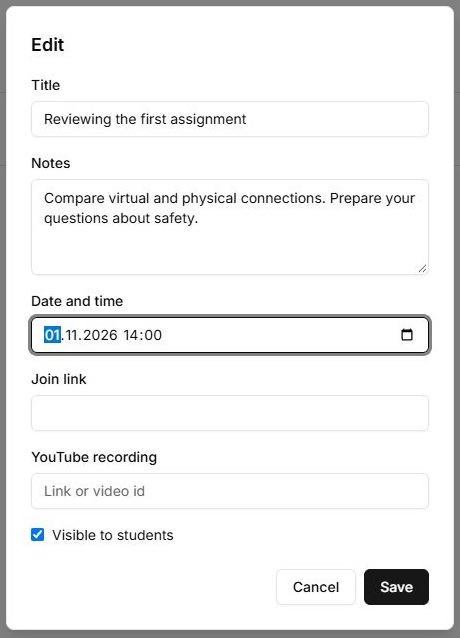
Before the session
Open the meeting link and verify participant access. Lab stores the material and links; creating a lecture card does not create an external meeting room or automatically record it. Agree on the time zone when scheduling.
Controls
| Button or field | Action and result |
|---|---|
| New lecture / Edit | Opens the material form for the selected class. |
| Title; Notes | Title is required. Describe the topic, preparation and participation procedure. |
| Date and time | Sets the scheduled lecture time. Check the displayed date and time after saving; this field does not start a broadcast automatically. |
| Join link | An external meeting address that students open from the card. Creating a Lab lecture record does not create a video-call room at that link. |
| YouTube recording | Adds a recording for viewing after class. You can fill it in later using Edit. |
| Visible to students | Publishes the material when saved. Without the checkbox, it remains a teacher draft. |
| Save / Cancel | Save writes changes; unavailable with an empty title or a running request. Cancel closes without saving current changes. |
| visible / draft | The list label confirms the saved publication state. Check it after changing the checkbox. |
| Delete | Immediately deletes the lecture record from Lab. For temporary hiding, clear Visible to students and save through Edit. |